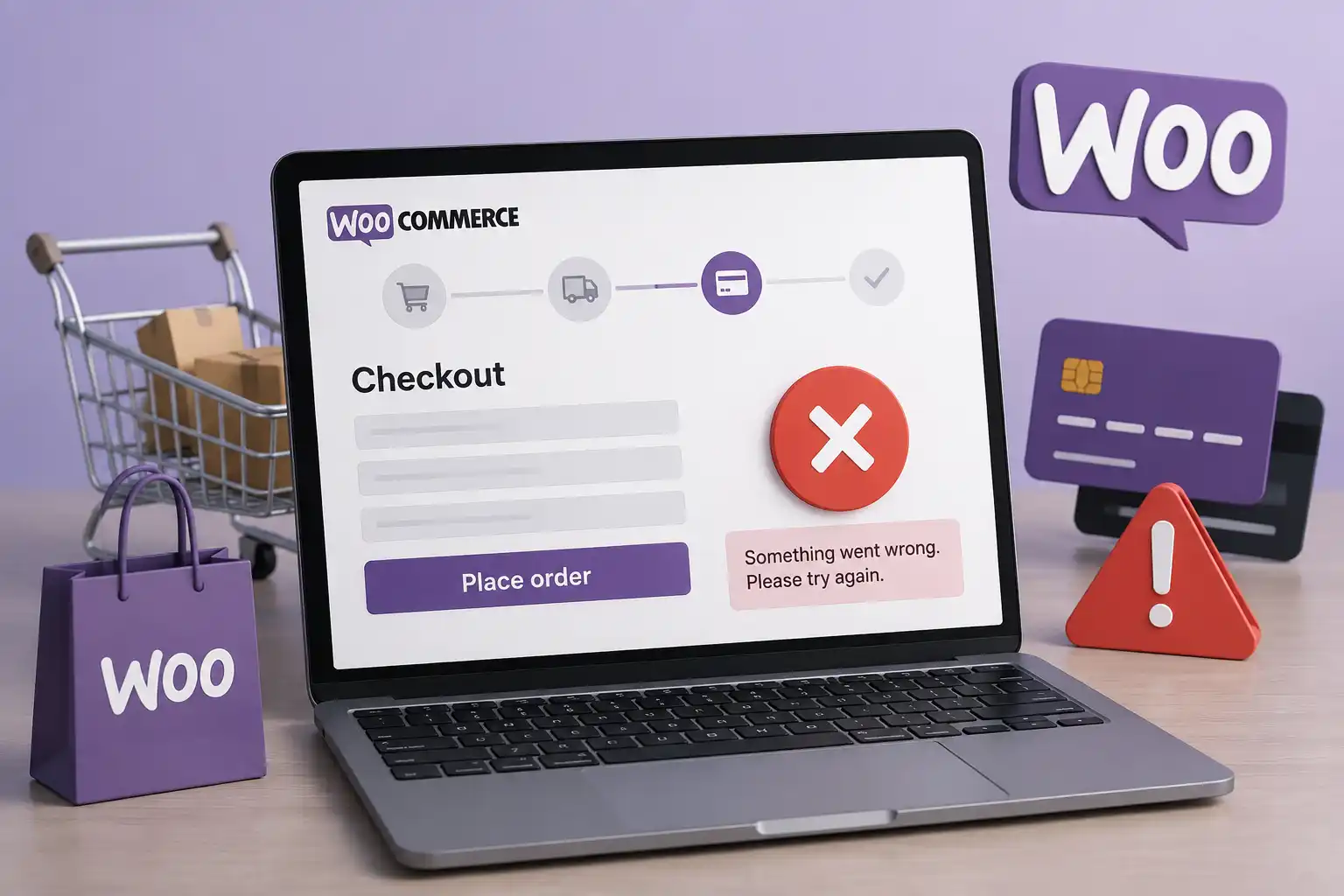
A WooCommerce checkout not working in WooCommerce store can appear completely normal until a customer reaches the checkout. Products load A WooCommerce store can work normally until checkout, where customers may encounter missing payment…

A WooCommerce checkout not working in WooCommerce store can appear completely normal until a customer reaches the checkout. Products load A WooCommerce store can work normally until checkout, where customers may encounter missing payment methods, an unresponsive Place Order button, endless loading, error messages, or orders stuck in pending status.
When the WooCommerce checkout is not working, the issue can directly affect revenue because customers are already at the final stage of the buying journey. Common causes include payment gateway settings, plugin conflicts, theme compatibility, caching, JavaScript errors, SSL issues, incorrect WooCommerce pages, shipping configuration, REST API restrictions, webhooks, server problems, and custom code.
Checkout troubleshooting should therefore investigate the complete transaction flow rather than simply reinstalling a payment plugin. Important checks include WooCommerce order notes, gateway logs, system status, payment notifications, plugin conflicts, and the hosting environment.
What Does It Mean When WooCommerce Checkout Is Not Working?
Checkout problems can appear in different ways, including:
- Place Order button not responding
- Payment methods disappearing
- Checkout loading endlessly
- Generic error messages
- Card payments failing
- Blank checkout pages
- Incorrect redirects
- Missing shipping options
- Orders stuck in Pending Payment
- Duplicate orders
- Successful payments without confirmed orders
- Checkout failing only on mobile
These symptoms can have different causes. For example, a missing payment method may result from gateway settings or Checkout Block compatibility, while pending orders may indicate a webhook or payment notification problem. The first step is to identify exactly where the checkout process fails.
Start by Reproducing the Checkout Problem
Before changing plugins or settings, reproduce the issue through the complete customer journey:
- Add a product to the cart.
- Enter valid checkout details.
- Select shipping and payment.
- Place a test order.
- Check the payment response and order status.
- Verify emails and integrations.
Use an incognito window and test different devices, browsers, payment methods, and both guest and logged-in checkout.
Check Whether the Order Is Created
Go to WooCommerce → Orders and check whether the failed checkout attempt created an order.
If no order exists, the problem may occur before WooCommerce processes the submission, such as through:
- JavaScript or validation errors
- Checkout Block issues
- Security restrictions
- Plugin conflicts
- Server errors
If an order exists but payment is incomplete, the problem is likely further along in the payment process. Order status can help identify where the transaction stopped.
Understand WooCommerce Order Statuses
Order status can help identify where a checkout problem occurred:
- Pending Payment: Payment has not been confirmed. Possible causes include failed webhooks, gateway configuration, plugin conflicts, or payment notification issues.
- Processing: Payment was generally received and the order is ready for fulfilment.
- Completed: The order has been fulfilled or automatically completed based on the store’s workflow.
- On Hold: The order is waiting for confirmation or manual action, which can be normal for methods such as bank transfers.
- Failed: The payment attempt failed or was declined. Order notes may show the reason.
Understanding these statuses helps you identify the actual problem instead of treating every checkout failure the same way.
Check the WooCommerce Order Notes
Open an affected order and review its notes. They may show:
- Payment attempts and transaction IDs
- Gateway responses or decline reasons
- Webhook activity
- Authentication failures
- Order status changes
- Customer return information
If there are no payment-related notes, the gateway may not have successfully communicated with WooCommerce. This can point to a gateway, webhook, plugin, or configuration issue.
Review WooCommerce Payment Gateway Logs
Payment gateway logs provide deeper technical information than the customer-facing error message.
WooCommerce recommends enabling gateway logging during troubleshooting and reviewing the logs through:
WooCommerce → Status → Logs
Depending on the gateway, logs may contain:
- API requests.
- API responses.
- Authentication errors.
- Webhook events.
- Payment declines.
- Missing parameters.
- Invalid currency.
- Callback failures.
Do not leave highly detailed debugging enabled permanently unless your setup specifically requires it.
Logs can grow quickly and may contain information that should be handled carefully.
Use them to diagnose the issue, then return the store to its normal logging configuration.
Your Payment Gateway May Be Misconfigured

Payment gateways rely on API keys, secret keys, merchant IDs, webhook URLs, account permissions, currency, country availability, and test/live settings. An incorrect setting can prevent checkout or payment confirmation.
Configuration problems often appear after:
- Switching from sandbox to live mode
- Migrating the website
- Changing domains
- Reconnecting a payment account
- Updating a payment extension
- Regenerating API credentials
When checking credentials, use the values provided directly by the payment provider rather than entering them manually.
Check Test and Live Mode
Payment gateways usually provide separate test and live environments. Checkout can fail when test keys are used in live mode, live keys are used in test mode, or test webhooks remain connected to a production store.
After configuration changes, confirm that all gateway settings use the same environment and that a successful test transaction creates the correct WooCommerce order status.
Payment Webhooks May Not Be Reaching WooCommerce
Webhooks send payment updates from the gateway back to WooCommerce. The process typically works like this:
- Customer places an order.
- The payment provider processes it.
- The provider sends a webhook to WooCommerce.
- WooCommerce confirms the payment.
- The order status updates.
If the webhook fails, a customer may complete payment while the WooCommerce order remains Pending Payment.
Common webhook problems include incorrect endpoint URLs, firewall or security restrictions, authentication failures, server errors, and gateway configuration issues. This makes webhook testing especially important when payments succeed but order statuses do not update.
Payment Gateway Compatibility Can Affect Checkout Blocks
Modern WooCommerce stores may use the Cart and Checkout Blocks rather than older shortcode-based checkout templates.This matters because payment methods and extensions need to support the Checkout Block correctly. WooCommerce documentation states that the Payment Options area displays payment methods that are both available for the store and compatible with the Checkout Block.
Therefore, if a payment gateway works with an older checkout implementation but disappears after switching to Checkout Blocks, compatibility should be reviewed. WooCommerce’s developer documentation also explains that payment gateway compatibility with Cart and Checkout Blocks involves front-end registration in addition to normal server-side payment processing. Businesses should not assume that every older checkout customization automatically works with newer checkout architecture.
Your Checkout Page May Be Configured Incorrectly
WooCommerce needs to know which WordPress page is being used as the checkout. Current WooCommerce documentation notes that when using the Checkout Block, the selected page still needs to be assigned as the store’s Checkout page through WooCommerce settings.
Check:
WooCommerce → Settings → Advanced
and confirm the correct page is assigned. Problems can occur when:
- Checkout page was deleted.
- A duplicate page was created.
- A redesign replaced the original checkout.
- Page assignments changed.
- A staging website was migrated incorrectly.
WooCommerce documentation identifies missing or incorrectly assigned pages as one reason core store pages may fail to display properly.
Permalink Problems Can Break WooCommerce Pages
WooCommerce depends on WordPress URLs and endpoints. If permalink rules become corrupted or incorrectly configured, important pages can fail.
Problems may appear after:
- Website migration.
- Server changes.
- Plugin changes.
- Custom rewrite rules.
- WordPress configuration changes.
WooCommerce lists permalink problems among the common reasons cart, checkout, and account pages may not display correctly. Sometimes saving the WordPress permalink configuration again can refresh rewrite rules, but technical troubleshooting should first confirm that permalinks are actually related to the issue. Avoid randomly changing the URL structure on an established eCommerce website because that can create additional SEO and navigation problems.
Caching Can Break WooCommerce Checkout

Caching is important for website speed, but dynamic eCommerce pages need special handling. WooCommerce checkout contains customer-specific information such as:
- Cart contents.
- Shipping address.
- Taxes.
- Payment methods.
- Session data.
Serving a cached version of this information can produce serious checkout errors. WooCommerce’s documentation states that Cart and Checkout pages should normally be excluded from page caching because they contain dynamic, session-specific information.
Check:
- WordPress caching plugins.
- Server-level caching.
- Hosting optimization.
- CDN caching.
- Cloudflare rules.
- Full-page cache settings.
If checkout problems began after enabling aggressive caching, review those settings before changing WooCommerce itself. Professional website speed optimization should improve performance without caching dynamic checkout sessions incorrectly.
CDN Settings Can Interfere With Checkout
A CDN can improve performance, but aggressive settings may interfere with WooCommerce’s dynamic checkout requests. Check whether your CDN is:
- Caching cart or checkout pages
- Blocking API requests
- Delaying important scripts
- Applying JavaScript optimization
- Interfering with payment callbacks
Test CDN settings against the complete purchase process. Faster page loads are not useful if checkout becomes unreliable.
JavaScript Errors Can Stop the Place Order Button
WooCommerce checkout depends heavily on JavaScript. Errors can cause the Place Order button to stop responding, payment methods to disappear, totals to stop updating, or checkout to load indefinitely.
Possible sources include themes, payment extensions, optimization plugins, tracking tools, popups, and custom code.
Use the browser’s developer console while reproducing the issue. The first JavaScript error often provides a better clue than the visible checkout symptom.
JavaScript Optimization Can Break Checkout
Performance plugins may combine, defer, delay, or minify JavaScript. These features can improve speed but may disrupt WooCommerce or payment scripts that require a specific loading order.
If checkout failed after enabling optimization, temporarily disable the relevant setting and test again. Rather than removing optimization permanently, identify the scripts or checkout pages that need exclusions.
Plugin Conflicts Can Break Checkout
WooCommerce stores often use multiple extensions for payments, shipping, taxes, subscriptions, discounts, security, analytics, and caching. A conflict between these extensions can cause missing payment methods, failed redirects, or gateway errors.
If possible, test conflicts on a staging site:
- Back up the website.
- Create a staging copy.
- Reproduce the checkout problem.
- Disable non-essential plugins.
- Test checkout.
- Reactivate plugins one at a time.
- Test after each activation.
This systematic approach helps identify the plugin causing the problem without disrupting the live store.
Your Theme May Be Causing Checkout Problems
Themes can override WooCommerce templates and styles. An outdated or heavily customized theme may interfere with:
- Checkout fields.
- Payment options.
- Layout.
- Buttons.
- Validation.
- WooCommerce hooks.
This becomes more likely when:
- WooCommerce was recently updated.
- Theme files contain old template overrides.
- Custom checkout code exists.
- The checkout was heavily redesigned.
The WooCommerce System Status report can help identify information about the environment and template configuration that may be relevant during troubleshooting. Professional WordPress theme development should keep WooCommerce compatibility in mind rather than treating checkout like an ordinary WordPress page.
Custom Checkout Code Can Break After Updates
WooCommerce checkout customizations can add fields, change field order, control payment or shipping rules, modify pricing, or connect external systems. These changes may depend on specific WooCommerce hooks or APIs.
A customization that worked with the traditional shortcode checkout may require changes when the store uses Cart and Checkout Blocks. After WooCommerce updates or checkout changes, review custom code and test all checkout functions.
Shipping Configuration Can Prevent Checkout
WooCommerce may not allow checkout to continue if no valid shipping method is available. Common causes include:
- Incorrect shipping zones
- Unsupported customer locations
- Missing shipping methods
- Product shipping classes
- Incorrect postcode rules
- Shipping plugin conflicts
Test the exact customer address. If checkout works for some locations but not others, investigate shipping zones and methods first.
Payment Methods May Depend on Cart Conditions
A payment method may disappear because it is not eligible for the current checkout rather than because it is broken. Availability can depend on:
- Customer country
- Billing address
- Currency
- Cart total
- Product type
- Subscription status
- Shipping method
Test different products, countries, shipping methods, and order values to determine whether the payment issue follows a specific condition.
Currency Settings Can Cause Payment Failures
Payment gateways do not support every currency. Problems can occur after changing the store currency, adding multi-currency functionality, expanding internationally, or switching payment accounts.
If payment fails after a currency change, verify that the gateway supports the store’s currency, country, and payment method.
SSL and HTTPS Problems Can Affect Checkout
Checkout handles sensitive customer information. WooCommerce strongly recommends HTTPS for online stores and notes that most payment gateways require SSL.
SSL problems can cause:
- Browser security warnings.
- Payment gateway rejection.
- Mixed-content problems.
- Redirect loops.
- Resources failing to load.
- Customer trust issues.
Your entire store should normally load consistently through HTTPS. Mixed HTTP and HTTPS configurations can create difficult-to-diagnose checkout behavior. Professional website security should include maintaining secure checkout infrastructure rather than simply installing a security plugin.
Mixed Content Can Break Checkout Resources
Mixed content occurs when an HTTPS page loads scripts, images, or styles through an insecure HTTP URL. Browsers may block certain insecure resources. If those resources are required for:
- Payment forms.
- Checkout validation.
- Styling.
- JavaScript.
the customer experience can break.
WooCommerce recommends checking the browser developer console for insecure resources when troubleshooting SSL problems. This issue commonly appears after migrating an older HTTP website to HTTPS.
Security Plugins Can Block Checkout Requests
Security plugins and web application firewalls protect WooCommerce stores from malicious activity. However, overly aggressive rules may also block legitimate checkout processes.
They can interfere with:
- AJAX requests.
- REST API endpoints.
- Payment callbacks.
- Webhooks.
- Customer sessions.
- CAPTCHA.
If checkout failures began immediately after changing firewall or security rules, review those changes. Do not permanently disable security just to make checkout work. Instead, identify which legitimate endpoint or request needs to be permitted.
REST API Restrictions Can Cause Compatibility Problems
Modern WooCommerce functionality increasingly relies on APIs. WooCommerce documentation notes that security plugins, custom code, and hosting-level firewalls can restrict WordPress REST API endpoints. Checkout Block integrations and extensions may rely on WooCommerce’s Store API. If REST requests are blocked, some checkout functions or integrations may fail.
Review:
- Security plugin settings.
- Custom REST restrictions.
- Server firewall rules.
- Hosting security systems.
A developer can use browser network tools and server logs to identify blocked requests.
Server Performance Can Cause Checkout Timeouts
A store may work correctly during quiet periods but fail when traffic increases. Checkout requests are often more resource-intensive than cached product pages because they require dynamic processing. Poor hosting can contribute to:
- Checkout delays.
- PHP timeouts.
- Database errors.
- Duplicate submissions.
- Gateway communication delays.
- Customers clicking Place Order several times.
WooCommerce specifically recommends investigating hosting and server performance when checkout delays contribute to order problems. Professional website speed optimization should therefore evaluate back-end performance as well as front-end page speed.
PHP Errors Can Cause Blank Checkout Pages

A completely blank page often indicates a server-side PHP problem. WooCommerce’s payment troubleshooting documentation notes that blank-page payment errors may indicate PHP issues and recommends debugging to identify the root cause.
Possible causes include:
- Fatal plugin errors.
- Theme code.
- Custom functions.
- PHP incompatibility.
- Memory problems.
WordPress debug logging and hosting error logs can provide more useful information than the blank page visible to customers. Debug information should generally be logged privately rather than displayed publicly on a live checkout page.
Check the WooCommerce System Status
Go to WooCommerce → Status to review your WordPress, WooCommerce, server, theme, template, database, and extension information. Outdated software or server and configuration issues may reveal the cause of checkout problems. Save the report if you need help from a developer or hosting provider.
Review Scheduled Actions
WooCommerce uses background processes for tasks such as subscription renewals. In WooCommerce → Status → Scheduled Actions, check for large numbers of pending or failed actions. A backed-up queue may indicate a cron, server, or plugin problem.
Check Tax Configuration
Tax settings can affect checkout totals and payment availability. Investigate tax zones, customer address validation, external tax services, and conflicting tax plugins if the problem appears after entering an address.
Testing different addresses can help determine whether the issue is related to location or tax calculation.
Test Coupons and Discounts
Discount rules can affect cart totals, taxes, shipping thresholds, and payment eligibility. If checkout fails only when a coupon is applied, investigate the discount or pricing logic.
Test the checkout:
- Without a coupon
- With the affected coupon
- With different product combinations
Check Subscription Compatibility
Subscription products may require gateways that support recurring payments, saved payment methods, and tokenization. If checkout fails only when subscription products are added, verify compatibility between the subscription extension and payment gateway.
Test Checkout as a Customer
Checkout may work for administrators but fail for normal customers because of different cookies, cache rules, security settings, or permissions.
Always test in an incognito browser as a guest customer. Where possible, also test the same device and geographic location as affected customers.
Mobile Checkout Can Have Different Problems
A checkout that works on desktop can still fail on smartphones.
Mobile-specific problems include:
- Payment iframe not resizing.
- Express buttons hidden.
- Keyboard covering fields.
- Sticky elements covering Place Order.
- CAPTCHA not fitting.
- Dropdowns difficult to use.
- Validation messages outside the screen.
The mobile checkout should be tested on actual devices, not only through a desktop browser preview. Professional responsive website design should consider checkout usability alongside ordinary website layouts.
Third-Party Integrations Can Interrupt the Order Flow

WooCommerce stores often connect to:
- CRM systems.
- ERP systems.
- Inventory platforms.
- Shipping software.
- Accounting platforms.
- Marketing automation.
- Fraud detection tools.
Custom integrations may run when an order is created. If external software responds slowly or returns an error, badly designed integrations can affect checkout performance. Professional API integration should avoid making the customer wait unnecessarily for external systems when asynchronous processing would be more appropriate.
CRM Connections Should Not Block Customer Checkout
A CRM integration may need to receive:
- Customer details.
- Order information.
- Product information.
- Marketing consent.
However, a temporary CRM outage should not necessarily prevent a customer from completing their purchase. Professional CRM integration should consider failure handling. The order should remain reliable even if an external business system temporarily becomes unavailable.
Database Problems Can Affect Checkout
WooCommerce relies heavily on the WordPress database. Large tables, expensive queries, excessive plugin data, database locks, or limited server resources can make checkout slow or unreliable.
For growing stores, database and server performance should be monitored alongside frontend optimization.
Avoid Making Multiple Changes at Once
When checkout fails, changing the gateway, disabling caching, updating plugins, or replacing the theme simultaneously makes the real cause harder to identify.
Make one controlled change at a time and test after each change.
Always Back Up Before Troubleshooting
Before making major changes, create a database and file backup and record important configuration settings. Use a staging environment whenever possible, especially when the live store is already losing orders.
Common WooCommerce Checkout Mistakes
Frequent causes include:
- Caching checkout pages
- Outdated payment plugins or themes
- Mixing test and live credentials
- Ignoring webhook failures
- Incompatible Checkout Block extensions
- Multiple checkout customization plugins
- JavaScript errors
- Blocked REST API requests
- Incorrect shipping zones
- SSL problems
- Changes made directly on the live site
- Ignoring WooCommerce logs
- Testing only as an administrator
Regular checkout testing can catch these issues before customers do.
Test Checkout After Major Changes
Always test the complete purchase flow after:
- WordPress or WooCommerce updates
- Theme or payment plugin updates
- New plugins
- Hosting or PHP changes
- CDN or security changes
- Checkout redesigns
- New shipping methods, currencies, or payment options
A homepage that works correctly does not mean an eCommerce website is functioning properly. The purchase flow is one of its most important systems.
How to Troubleshoot WooCommerce Checkout
Use a structured process:
- Reproduce the problem.
- Check whether an order is created.
- Review the order status and notes.
- Check gateway settings and logs.
- Verify webhooks.
- Confirm checkout page configuration.
- Test payment, shipping, tax, and coupon conditions.
- Check JavaScript errors.
- Review cache and CDN settings.
- Check SSL, REST API, and firewall restrictions.
- Review WooCommerce System Status.
- Test plugin and theme conflicts on staging.
- Check server errors and performance.
- Test desktop and mobile checkout.
- Complete a final end-to-end test order.
This approach helps identify the actual failure instead of relying on random fixes.
Why Checkout Problems Should Be Fixed Quickly
Checkout is where customer purchase intent is strongest. By this stage, the customer has already found your store, evaluated a product, added it to the cart, and started the purchase.
A checkout failure can therefore waste investment in SEO, Google Ads, social advertising, email marketing, content, and customer acquisition. Even a short outage can result in lost sales for an active store.
Checkout Optimization Is Different From Checkout Repair
A checkout can technically work and still perform poorly. Repair focuses on fixing failures. Optimization focuses on improving the customer experience.
Once technical problems are resolved, Conversion Rate Optimization may examine:
- Number of fields.
- Checkout distractions.
- Mobile experience.
- Payment options.
- Trust elements.
- Error messages.
- Guest checkout.
- Express payment.
- Checkout speed.
Do not begin conversion experiments while the underlying transaction process remains unreliable.
Ongoing WooCommerce Maintenance Can Prevent Failures
Many checkout problems appear after the store has been left unchanged for long periods. WordPress, WooCommerce, extensions, payment APIs, PHP, browsers, and third-party services continue changing. Professional eCommerce maintenance and support can include regular checks of:
- WooCommerce updates.
- Payment gateways.
- Checkout testing.
- Plugin compatibility.
- Security.
- Backups.
- Performance.
- Logs.
- Integrations.
The goal is to identify problems before customers discover them.
When Should You Hire a WooCommerce Developer?
Professional WooCommerce support is recommended when checkout problems continue despite basic troubleshooting, especially when:
- Payment methods disappear or fail.
- Orders remain stuck in Pending Payment.
- Webhooks or payment notifications fail.
- Custom checkout code is involved.
- Checkout Blocks create compatibility issues.
- Plugin conflicts are difficult to isolate.
- JavaScript or REST API errors affect checkout.
- Server problems are involved.
- Complex shipping or pricing rules are used.
- Checkout failures are directly affecting revenue.
A WooCommerce developer can investigate the complete purchase flow, identify the underlying technical issue, and fix it without relying on random changes that could create additional problems.e flow rather than automatically blaming the payment gateway.
WooCommerce Development From Avenzo Digital
A reliable eCommerce website depends on a reliable checkout. At Avenzo Digital, our WooCommerce development services help businesses troubleshoot, improve, customize, and maintain WooCommerce stores where checkout, payments, performance, integrations, or functionality require professional attention.
Depending on the issue, WooCommerce support may include:
- Checkout troubleshooting.
- Payment gateway configuration.
- Checkout Block compatibility.
- Plugin conflict analysis.
- Theme compatibility.
- Webhook troubleshooting.
- Shipping configuration.
- JavaScript debugging.
- API integrations.
- CRM integrations.
- Performance optimization.
- Mobile checkout improvements.
- Technical maintenance.
The objective is not simply to remove an error message. It is to make the complete purchase process reliable from Add to Cart through confirmed payment and order creation.
Request a WooCommerce Checkout Review
If customers are reaching checkout but failing to complete purchases, continuing to send more traffic to the store can increase wasted marketing spend. The checkout should be investigated before the problem affects more orders. Avenzo Digital can review the technical checkout process and identify issues involving WooCommerce configuration, payment gateways, plugins, themes, caching, shipping, SSL, APIs, mobile usability, and hosting. Explore our WooCommerce development or website technical support services if your store’s checkout is unreliable.
A WooCommerce checkout review may include:
- Test purchase.
- Order status analysis.
- Payment gateway review.
- Log analysis.
- Webhook checks.
- Checkout Block compatibility.
- Plugin conflict review.
- Theme compatibility.
- Caching configuration.
- SSL review.
- JavaScript errors.
- Mobile checkout testing.
- Server and performance recommendations.
Conclusion
A WooCommerce checkout problem should never be diagnosed from the visible error alone. The failure may occur before the order is created, during payment processing, after payment when a webhook should update the store, or inside another system connected to WooCommerce. If your WooCommerce checkout not working issue continues, begin by reproducing the transaction and tracing what happens at every step.
Review order statuses, notes, gateway logs, payment credentials, webhooks, Checkout Block compatibility, caching, plugins, themes, shipping, SSL, APIs, and server performance. WooCommerce’s own troubleshooting guidance recommends many of these same diagnostic areas, including logs, system status, conflict testing, payment notifications, and order information. Professional WooCommerce development can help isolate the exact failure when the store has become too complex for basic troubleshooting.
Frequently Asked Questions
Why is my WooCommerce checkout not working?
Common causes include payment gateway configuration problems, plugin or theme conflicts, caching, JavaScript errors, incorrect checkout page settings, shipping configuration, webhooks, SSL issues, API restrictions, or server errors.
Why does the WooCommerce Place Order button do nothing?
JavaScript errors, checkout validation problems, plugin conflicts, payment gateway scripts, caching, or custom checkout code can prevent the button from processing the order.
Why is my WooCommerce order stuck on Pending Payment?
WooCommerce received the order but has not confirmed payment. Check the payment gateway, order notes, gateway logs, webhooks, and payment notification configuration.
Why are payment methods missing from WooCommerce checkout?
Payment methods may be disabled, unavailable for the customer’s country or currency, incompatible with the current cart, or incompatible with the WooCommerce Checkout Block.
Can caching break WooCommerce checkout?
Yes. WooCommerce recommends excluding dynamic Cart and Checkout pages from page caching because they contain customer-specific session information.
Can a plugin cause WooCommerce checkout problems?
Yes. Plugin and extension conflicts can affect payment methods, checkout fields, redirects, JavaScript, API requests, shipping, and other checkout functionality.
Can a WooCommerce theme break checkout?
Yes. Outdated template overrides, custom theme code, missing hooks, styling conflicts, or compatibility issues can interfere with checkout.
Why does WooCommerce checkout work on desktop but not mobile?
Mobile-specific JavaScript, responsive layout, CAPTCHA, payment iframe, sticky elements, or form usability problems may affect smartphones even when desktop checkout works.
Why did WooCommerce checkout stop working after an update?
An update may expose compatibility problems between WooCommerce, the theme, payment gateway, plugins, Checkout Blocks, custom code, or the PHP environment.
Does WooCommerce checkout require SSL?
WooCommerce strongly recommends HTTPS for stores, and many payment gateways require SSL to securely process customer and payment information.
Where can I find WooCommerce checkout error logs?
Gateway and WooCommerce logs can generally be reviewed under WooCommerce → Status → Logs. Individual payment gateways may also need debugging or logging enabled first.
Should I disable plugins to troubleshoot WooCommerce checkout?
Conflict testing can help, but it should preferably be performed on a staging site rather than disrupting a live store. Disable extensions systematically and test after each change.
What should I test after fixing WooCommerce checkout?
Complete a real end-to-end test covering cart, checkout fields, shipping, payment, order creation, order status, confirmation page, customer email, administrator notification, and any connected systems.
When should I hire a WooCommerce developer?
Professional help is appropriate when checkout failures continue, payments or webhooks are unreliable, custom functionality exists, several extensions interact with checkout, or the issue is causing lost revenue.
Related Avenzo Service
If you need hands-on store development, explore Avenzo’s eCommerce development services across Shopify, WooCommerce, redesign, performance, and conversion-focused implementation.
eCommerce Development →